MAP is a powerful and easy to use programming language

Program via pull down menus
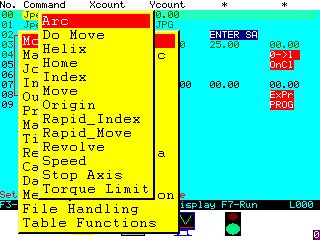
Map commands organized in groups as are shown in the above photograph. This makes it much easier for the unexperienced programmer to select and enter commands. For example the motion control commands (that is commands that cause motion or movement) or mainly listed under the tab of the menu. It is quick and easy to navigate by moving the cursor up and down and pressing the enter key. Each group has another menu which shows all the commands available within that group.
Quick and easy to understand commands
The above photograph shows the motion control tab which displays some of the options that can be chosen from. The commands are selected using the arrow keys to scroll up or down and once the cursor is highlighting the command you want to select, the command is confirmed by pressing the ENTER key.
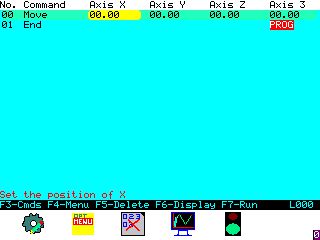
Each command has a help messages
When commands are entered, the programmer is prompted with regard to the data fields and how to enter the data. Most commands are limit checked to ensure that data entered is within the limits set during the calibration field. The idea of map is that it tries to ensure that the data entered by the programmer is correct as far as possible on entry this makes programming easier and adds to safety.
Powerful instructions with flexible data options

Enter constant data in a program
The above image shows a simple program which draws a square box with rounded corners which is very typical of many items commonly machined on a milling machine. Note from the above image that there are four columns of data and one column of commands. The data is entered in a very similar way to that of a spreadsheet. Data can also be taken from registers which allows for example in move commands data to be calculated prior to initiating a move instruction.

Use the simulator to check your program
Once you have written your program if it involves motion control it is possible to run a simulation which provides an image that the motion control would take. This image is called the tool path image. The visualisation of your program can make debugging your program much easier.
Easy to use variables enhance capabilities
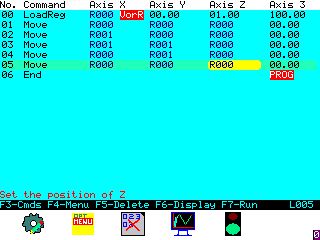
Most commands can use either constant data or variable data. This means for example that move commands can go to absolute positions or can have position is calculated by your program. Photograph above shows a simple program to produce a square using to registers. One register is loaded with zero and the other is loaded with 100. Registers are used to make writing programs easier as it dispenses with the difficulties associated with memory in most programs.
Create Vibrant images and user interface screens with ease
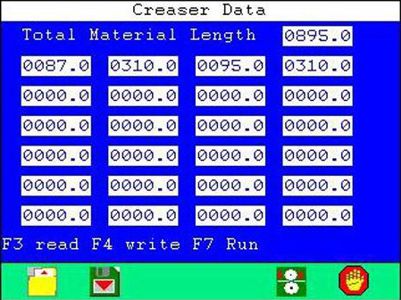
Create user interface screens
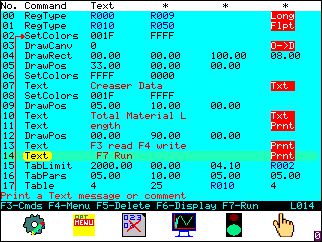
MAP has special commands that make the design of user input interfaces productive and easy to implement. Many User interfaces can be implemented with as little as 20 instructions. There are special instructions that make user interface easy to write.
The image shown below is the actual code for a creaser application.
Rich Graphics commands
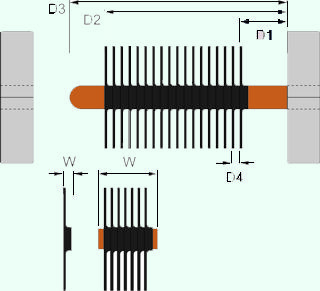
Map has excellent graphics instructions that support the drawing of JPEG images such as the one shown above and bit map images as shown on the bottom of the picture, lines, rectangles, boxes, colour change and fonts.
Maths commands and support
Map supports a wide range of Maths commands enabling complex mathematical formulas to be written.
- Arithmetic command includes: Add, Subtract, Multiply, Divide, XOR and Not.
- ADDMULTIPL adds multiple variables together.
- Average. Finds the average of a range of variables.
- Cosine.
- Find Max.
- Find Min.
- Logic.
- Raise to the Power.
- Sine.
- Square Root.
- Sum.
- Tangent.
File Handling Commands
Data can be sent, received and stored from a range of devices including serial ports, local files and flash sticks. MAP can read text files such as Excel, Programmers can also write and read binary files.
- Close File: Used to close an opened file.
- File Stats: Used to provide file information about an opened file.
- Load File Data: Allows a conditional motion control loop to be implemented.
- Load Parameter: Reads a parameter file and loads it into a buffer ready to be parsed.
- Open Binary File: An optional command that allows the user to force the axis back to a home position.
- Parse File: Is a move relative to the current position.
- Rewind File Ptr.: This is a feed move like G1 in G code it is a move at the reduced feed date speed.
- Write To Binary File: This command is used to set a "zero position" that is offset from the real zero point at the home position.
Motion control and I/O commands
Motion Control Commands
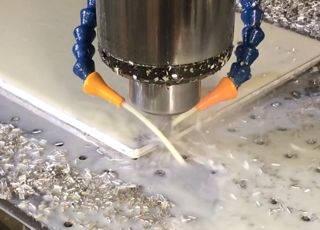
Map has a rich set of motion control commands making motion easy to implement. Many of the commands have a G code equivalent, but are easier to understand.
- Arc: Used to make arcs and circular movements.
- Do Move: Allows a conditional motion control loop to be implemented.
- Helix: Supports helical motion either multi turn or helical arcs.
- Home: An optional command that allows the user to force the axis back to a home position.
- Index: Is a move relative to the current position.
- Move: This is a feed move like G1 in G code it is a move at the reduced feed date speed.
- Origin: This command is used to set a "zero position" that is offset from the real zero point at the home position.
- Rapid Index: Is a move relative to the current position at full speed.
- Rapid Move: This is a rapid move like G0 in G code it is a move at full speed.
- Revolve: Revolve an axis continuously (used in applications like conveyors).
- Speed: This command allows the speed to be set in percentage.
- Stop Axis: Is used to stop an axis that is revolving used a revolve command
- Torque Limit: Allows the programmer to set an axis torque limit (works in the current mode)
Machine Specific Commands
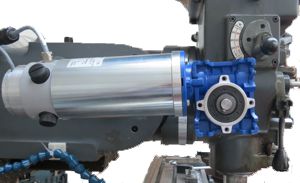
Machine specific commands controls actions such as Coolant, drilling, parking, feed rate etc. These are commands normally associated with a machine or machining.
- Absolute: Used to make movements from the axis zero.
- Air Drill: Used to control multi headed pneumatic drills.
- Coolant: Controls the flow of coolant, ON, flow and off.
- Drilling: This is a peck drilling command.
- Feed Rate: Feed rate allows the axis speed to be controlled in mm or inches per minute.
- G Code: Invokes a G Code browser box and then runs the imported code.
- Jog: Calls the JOG menu to allow the operator to set the origin.
- Park & power down: Allows the machine to positioned at an absolute position and to power down.
- Planes: Sets the axis involved in an Arc XY, XZ and YZ.
- Precision: This command controls the precision and operating mode.
- Spindle: Controls the spindle speed, direction or stops the spindle.
- Tool: Used to effect tool change.

Input commands
Input commands are used to facilitate the monitoring inputs. Inputs can be of many types can be monitored using the MAP input commands, these include serial data coming in the the controller, the keypad, the analogue to digital converter. Input ports data can be checked with input commands and also load commands.
- ADC: Used to read the analogue inputs.
- Import: Import data from the serial port.
- Input: Test a port bit and loop until the bit reaches a state.
- Key Press: Key Press is used to cause a program to wait for a key press from the key pad.
- Question: Question is used to input data from the Keypad.
- YesNo Box: Invokes a Yes/No box and associates it with a message.
Output Commands
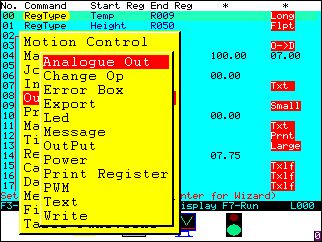
Output commands are used to control how the program controls data that is output to the output ports. Commands include analogue output, change an output port bit, export data on the serial port and also controls the PWM. The output commands are also used to output messages on the screen and to files.
- Analogue out: Used to write to the analogue outputs.
- Change Output: Allows a single bit of the output port to be changed.
- Export: Used to export data on the serial port.
- LED: Above the keypad are some LEDs. This command is used to control the LEDs
- Message: Output a message from the message list.
- Output: Output data to a data port.
- Print Reg: Print the value of a register to the screen.
- PWM: Controls the frequency and value output.
- Write: writes data to a file.
Timers, data logging and memory allocation functions

Timer Commands
The PMC4 has multiple hardware timers with interrupt, MAP supports 8 timers with a minimum time of 10 Milli seconds and a maximum time of several hours. MAP also provides access to the "Tick Timer" this gives a 1 Us resolution and the timer is 32 bits. The timers can be programmed as either count up or down timers.
- Halt: Stops a timer.
- Timer: Used to set up a timer.
- Wait: Causes a wait delay from 10ms to 2.7 hours.
Registers and Data Functions
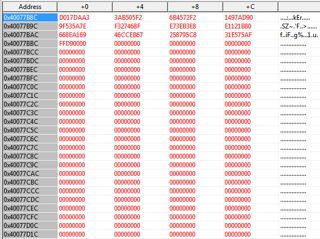
These commands are used to set up and load data into the 256 registers that each process is allocated. Some commands have 12 options and the load option is shown in RED on the screen. Data that can be loaded includes, encoder position, input ports, Jog encoder, following error, keypad value, torque output, register to register and constant value.
- Copy Back: Controls the registers "passed Back" to a parent function from a child process.
- Load Register: Allows one of the 256 registers to be loaded with data or a constant.
- Load Counter: Used to export data on the serial port.
- Load Multiple: Above the keypad are some LEDs. This command is used to control the LEDs
- Load System Var: Output a message from the message list.
- Modify System vars: Output data to a data port.
- Nest: Print the value of a register to the screen.
- Parameters (Machine): Controls the frequency and value output.
- Register Type: writes data to a file.
Data logging
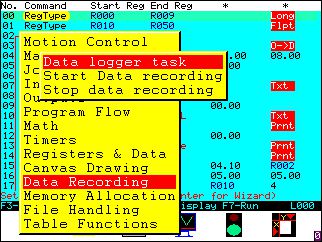
The data logger functions allow the controller to log up to 8 channels of data. The log timer allows data to be logged at intervals of as little as 2ms. The data can be calibrated and stored in a range of options such as temperature in Celsius and Fahrenheit.
- Data Logger Task: Used to set up a data logger task.
- Start Data recording: This command is used to start the data loggers.
- Stop Data logging: Used to stop data logging early (e.g before the counter expires).
Memory allocation
Memory allocation is for the advanced user and is not needed for most machine applications. However memory allocation allows for complex tasks to be achieved such as wire frame modeling, probing, data manipulation etc. Memory allocation in MAP is similar to other languages like C and MAP supports pointers data writing and reading.
- Allocate Memory: Used to allocate memory in blocks of 64K, the system allocates a pointer automatically.
- Copy from memory: Used to copy from registers to the memory.
- Copy to memory: Used to copy from the allocated memory to the registers.
- Free memory: Used to return memory back to the system.
Graphics, User data entry screens and G Code
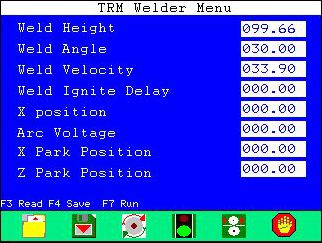
Table commands
Table commands are used to make a user data entry interface (udei). These commands are easy to use and a udei can be written in around 20 lines of code.
- Cell Limit: Used to set the limits on a cell in a table.
- OnKey: Used to call a child process when a function key is pressed.
- Table: Used to create a user entry menu or table.
- Table Limits: Used to set the table limits.
- Table Parameters: Used to the number of rows and columns etc.
Canvas drawing commands
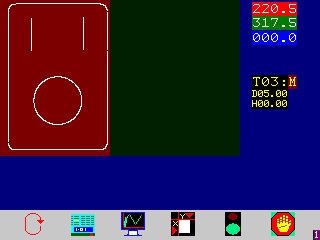
Map uses a canvas to effect drawing on the screen, the canvas makes drawing images and text easy.
- Draw Canvas: Used to set up and draw a canvas.
- Clear Canvas: Used t0 clear the canvas for use to draw graphics.
- Draw Pointer: Used to set the point on the screen where drawing takes place.
- Circle: Used to draw filled and outline circles.
- Draw Rectangle: Used to draw rectangles and squares.
- Set Colors: Used to set up background and foreground colors.
- Draw Line: Used to draw a line on the canvas.
- JPeg Image: Used to print a JPEG image.
- JPeg Size: Used to set the size of an image.
- Work Size: Used to set the size of the work piece.
- Font Size: Used to set the font size.
- Draw BMP: Draws a bitmap (BMP) on the screen.
- SaveScreen: Used to save and recover an image from the system memory.
G Code support
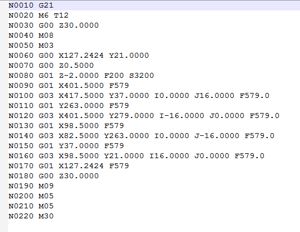
MAP has instructions that are equivalent to some in G Code and allows G Code to be imported and saved as a MAP program. MAP has a comprehensive support for G code show below.
- G0: Rapid Move.
- G1: Feed Move.
- G2: G2 clock wise arc.
- G3: G2 Counter clock wise arc.
- G4: Dwell.
- G7: Diameter mode.
- G8: Radius Mode.
- G17: XY planes.
- G18: XZ Planes.
- G19: YZ Planes.
- G20: Use imperial.
- G21: Use Metric.
- G28: Park.
- G40: Radius compensation off.
- G49: Tool length compensation cancel.
- G50: Scaling off.
- G53: Absolute Mode on.
- G64: Exact path mode.
- G80: Cancel canned cycles.
- G81: Cycle drilling command.
- G82: Cycle drilling command.
- G90: Absolute measurement mode.
- G90_1: Absolute distance mode.
- G91: Incremental distance mode.
- G96: Constant surface speed.
Off line programming
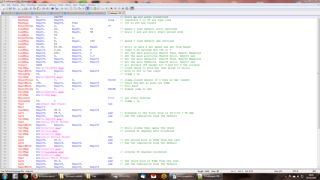
MAP software offers off line programming, via a free programmer's editor. TRM offer a free extension that highlights code as it is entered, the editor allows labels to be entered this makes loop instructions like IF etc easier to write.
Typical applications for MAP
Machine controller
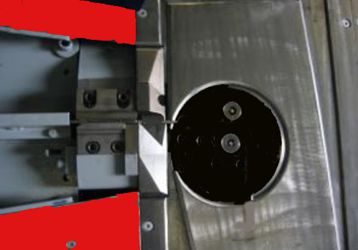
The PMC4 is a powerful general purpose controller. MAP is a fast and efficient programming language making it ideal for many machine related applications. Typical machine applications include Milling machines, grinders, depositors, custom machines, CNC welding, wood working, saws, drilling, carpet making to mention a few of the possible applications.

Instrumentation and process control
MAP supports standard I/O functions and in many cases offers better performance than many PLC controllers. With it's enhanced capabilities and the high speed performance of MAP applications can be implemented quickly. This makes the MAP ideal for many instrumentation and process control applications such as: Ovens, PID controllers, Tank monitors and controllers, Mixers, food production, check weigher, horticultural controller and data loggers.
Obsolete PLC replacement
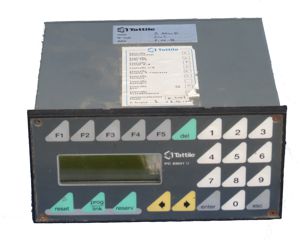
Many PLCs are now obsolete and this leaves the owners with a big problem. Customers have told us that they are stuck as they don't even have access to their code, with us you will be given a text version of your code and MAP is backward compatible so new controllers can use code from previous versions.

MAP is one of the easiest industrial programming languages to learn
The map programming language was designed to make implementing industrial control systems as easy as possible. It was written for people with limited programming knowledge in order to make it possible for them to quickly and easily write control system programs. Map is provided on the controllers and the user does not require compilers or expensive licenses. For the more experienced programmer there are also facilities within the rich instruction set for delivering powerful end-user programs which can provide similar facilities to programs written in languages such as C. TRM provides courses and educational information to assist users to learn how to program. We also provide courses for technical colleges, schools and universities. With map it is possible to write a feature rich user interfaces in as little as 30 lines of code this including graphics. Map programs can be written on the controller using the on-board editor or off-line using a free programmers editor which also has highlighting making it easy to select commands and data.